Communications
ClientOS sends your documents to clients for you: an invoice by email, a payment reminder on WhatsApp, a ticket update by SMS. This guide covers how sending works, how to change what the messages say, and the one thing to set up first.
Sending a document
Almost every document has a Send button, with Send on WhatsApp alongside. Click it, pick the channel and check the message, and ClientOS delivers the document (with its PDF attached, for email) to the client. The document then shows its delivery status, so you know it went out.
The same thing happens from other places: a payment reminder on an invoice, a public reply on a ticket, a quotation to a prospect. Wherever you can send, it is the same Send action.
Changing what the messages say
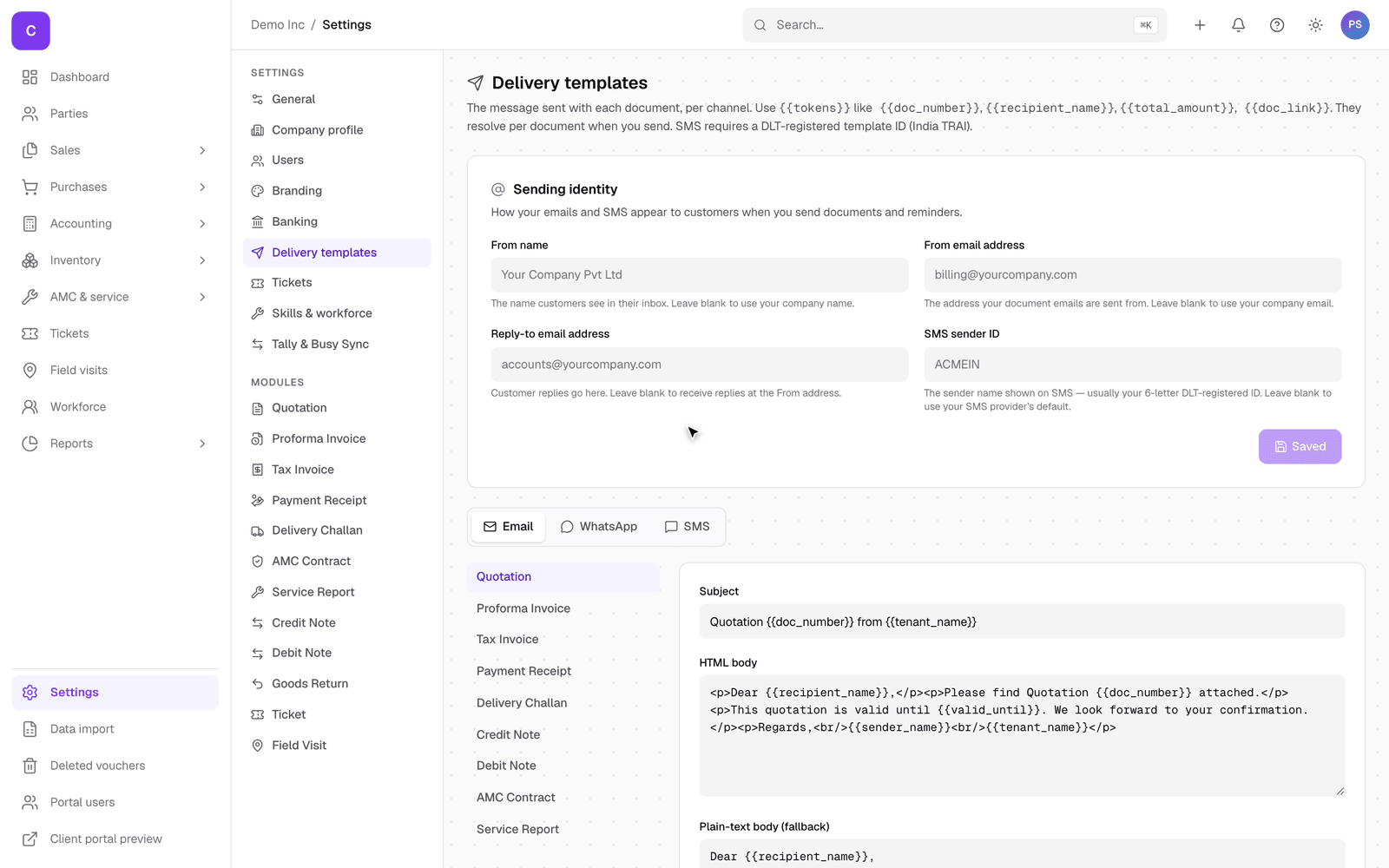
The wording of these messages is yours to set. Open Settings, then Delivery templates. The page has two parts.
At the top, Sending identity is how you appear to customers: the From name, the From email address documents are sent from, the Reply-to address where replies land, and your SMS sender ID. Leave any of them blank to fall back to your company defaults.
Below that, for each document type you can edit the message on each channel:
- Email: the subject and the body.
- WhatsApp: the caption that goes with the document.
- SMS: the short text (and the DLT template id your SMS provider needs in India).
Placeholders like {{recipient_name}} and {{doc_number}} fill in automatically when you send, so you write the wording once and it personalises itself. This is where you make every message sound like your business.
Setting up email first
You set the from-address and reply-to above, but there is one more piece: your email provider has to allow ClientOS to actually deliver mail as that address, so it arrives reliably and is not marked as spam. That connection is arranged once, when your account is set up, not from a settings page.
What to ask your email provider or your IT person for:
- The sending address you want documents to come from, for example accounts@yourcompany.com.
- Permission for ClientOS to send email on behalf of that address through your provider.
You do not need to understand the technical records behind this; your provider or IT person handles that part. Once it is connected, the Send button just works, and your clients see email from your own address. WhatsApp and SMS are connected the same way, through a provider, as part of the same setup.
Good to know
- Nothing is sent silently: every send is recorded on the document with its status, so you always have proof of what went out and when.
- The message content and recipient details are treated as private and are never written to logs.
- Until sending is connected, the buttons are there but nothing leaves; this is why a brand new account shows the actions without delivering.