GST
ClientOS handles the GST detail for you: it works out the right tax split from the parties' GSTINs, numbers your documents the way the law expects, produces the files you upload to the government portal, and protects a return once you have filed it. This guide covers the three things owners ask about most: numbering, the e-way bill, and filing GSTR-1.
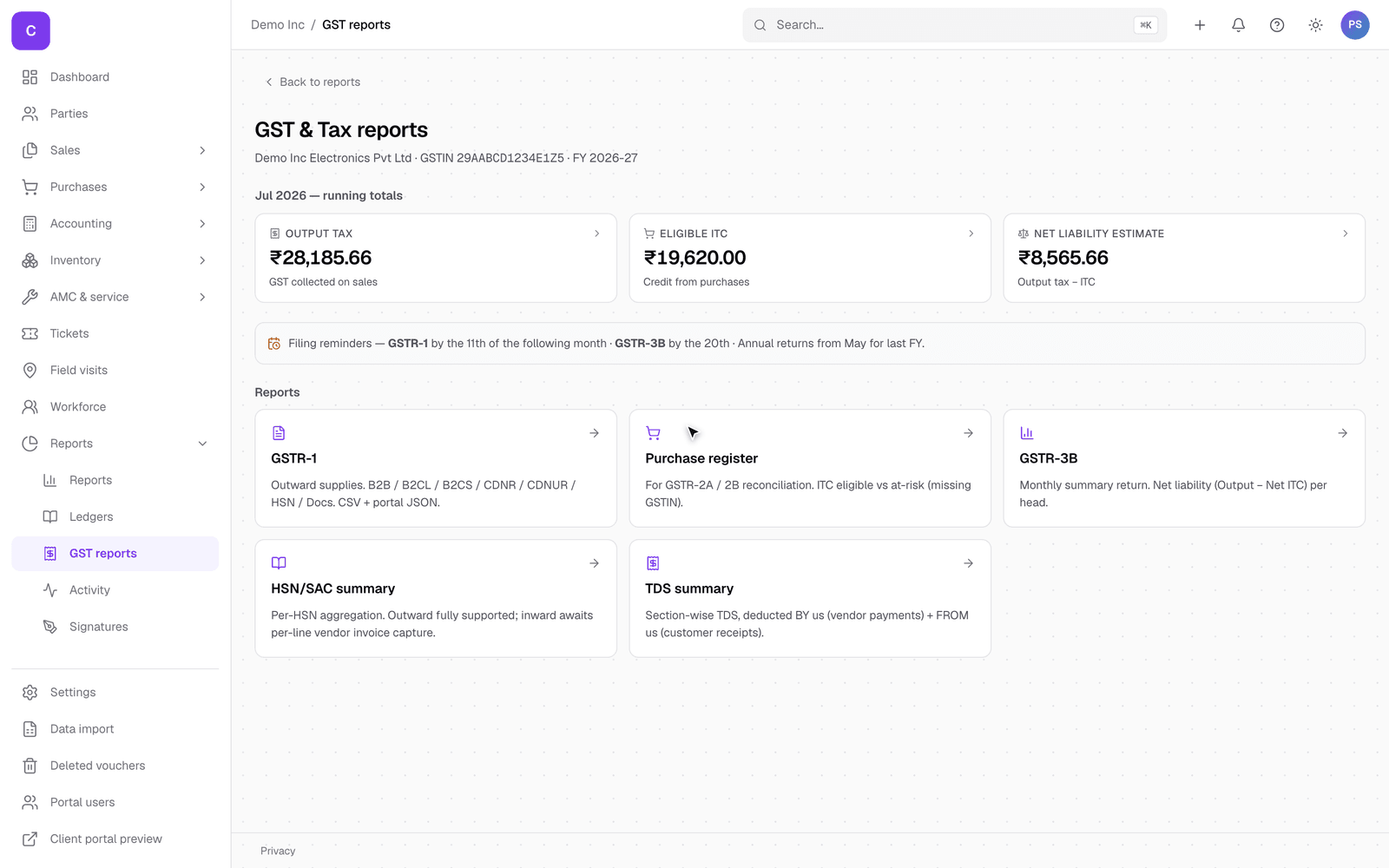
The GST reports live under Reports, then GST.
The GST hub shows your position for the period at a glance: the tax you have collected (output tax), the credit you can claim on purchases (ITC), and the net you owe, with the individual returns below and reminders of what is due.
Numbering
A GST document's number is part of a statutory series, so ClientOS is careful with it:
- A draft has no number yet. You can keep editing it, or discard it, and nothing is used up.
- The number is minted only when you issue the document. From that moment it is on the official series.
- An issued document is never simply deleted, because that would leave a gap in the series. You cancel it instead, which keeps the number and the record.
The result is a clean, gap-free series you can stand behind at filing time. You never set a number by hand unless you deliberately choose to.
E-way bills
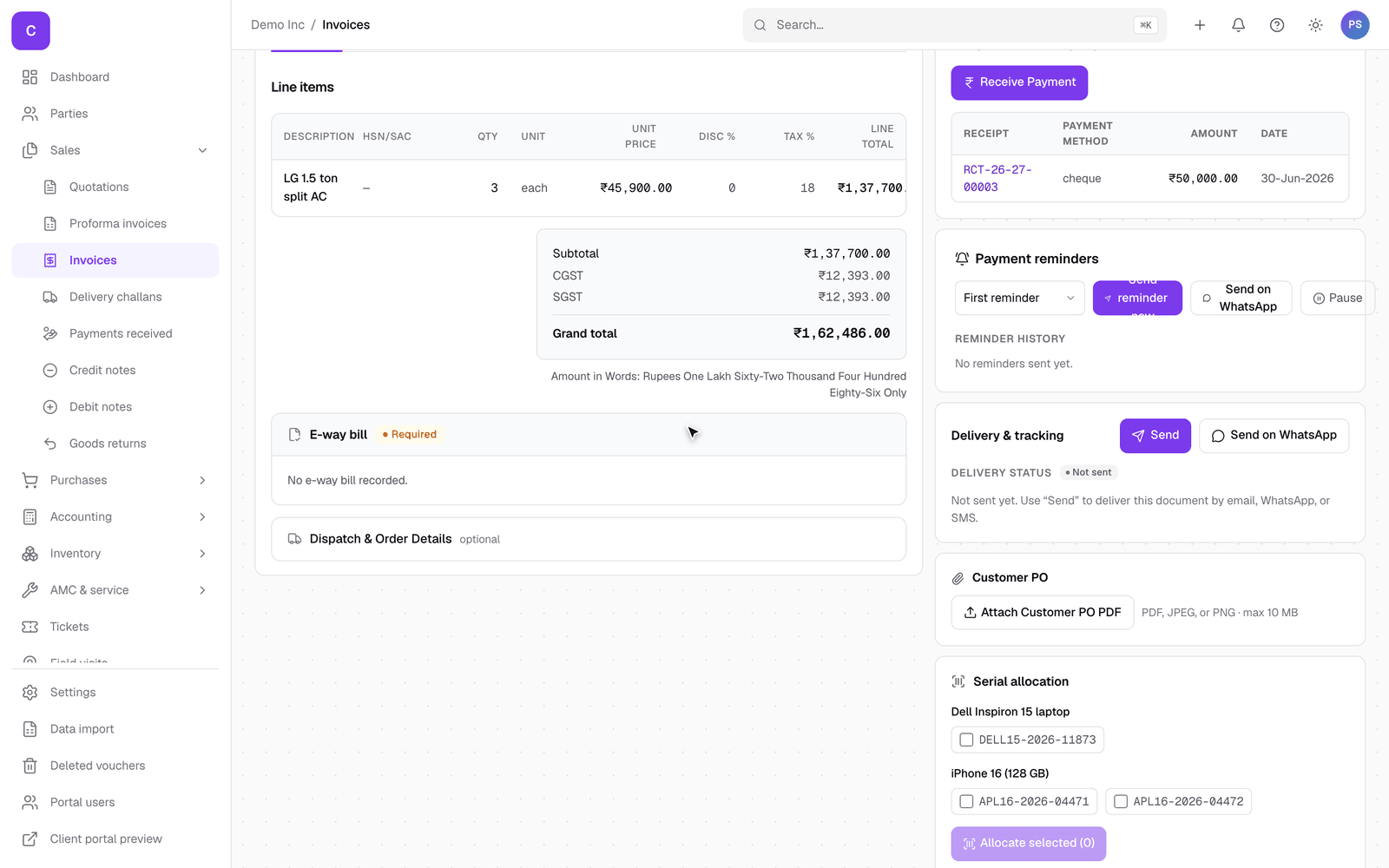
When you move goods above the threshold, GST needs an e-way bill. ClientOS prepares it from the invoice you already made, so you do not re-enter anything.
- Open the invoice. In its Build view there is an e-way bill section. ClientOS already knows whether one is required, from the invoice value and the states involved.
- Fill the transport details (vehicle, distance, transporter) in that section.
- Generate the e-way bill JSON. ClientOS builds the file in the exact shape the government portal expects.
- Upload that file to the e-way bill portal (or hand it to your transporter or CA). The portal returns the e-way bill number.
Filing GSTR-1
GSTR-1 is your monthly return of outward supplies (your sales). ClientOS builds it from your issued invoices so you do not compile it by hand.
- Open Reports, then GST, then GSTR-1, and pick the period.
- Check the figures against your records.
- Download the Portal JSON and upload it to the GST portal through the offline tool, or hand it to your CA. There is a CSV as well if you prefer to review it in a spreadsheet.
What "mark filed" does, and what it locks
Once you have actually filed a period's GSTR-1 on the government portal, mark that period as filed in ClientOS (from the filing strip on the tax invoices list). This is not just a note to yourself: it locks the invoices in that period. Specifically, their numbers can no longer be freed and reused, because the return you filed refers to those exact numbers. Marking a period filed is what keeps ClientOS and your filed return in permanent agreement.
Good to know
- The tax split (CGST and SGST for within-state, IGST for across-state) is worked out from the seller's and buyer's GSTINs; you never pick it by hand.
- GSTR-3B, an HSN summary, a purchase register and a TDS summary are all in the same GST hub, built from the same data.
- Because a filed period is locked, do your cancelling and correcting before you file, not after.