Users and roles
Your team members each get their own login, and their role decides what they can see and do. This keeps the right people in the right places: your accountant in the money, your field staff on their visits, without everyone having the keys to everything.
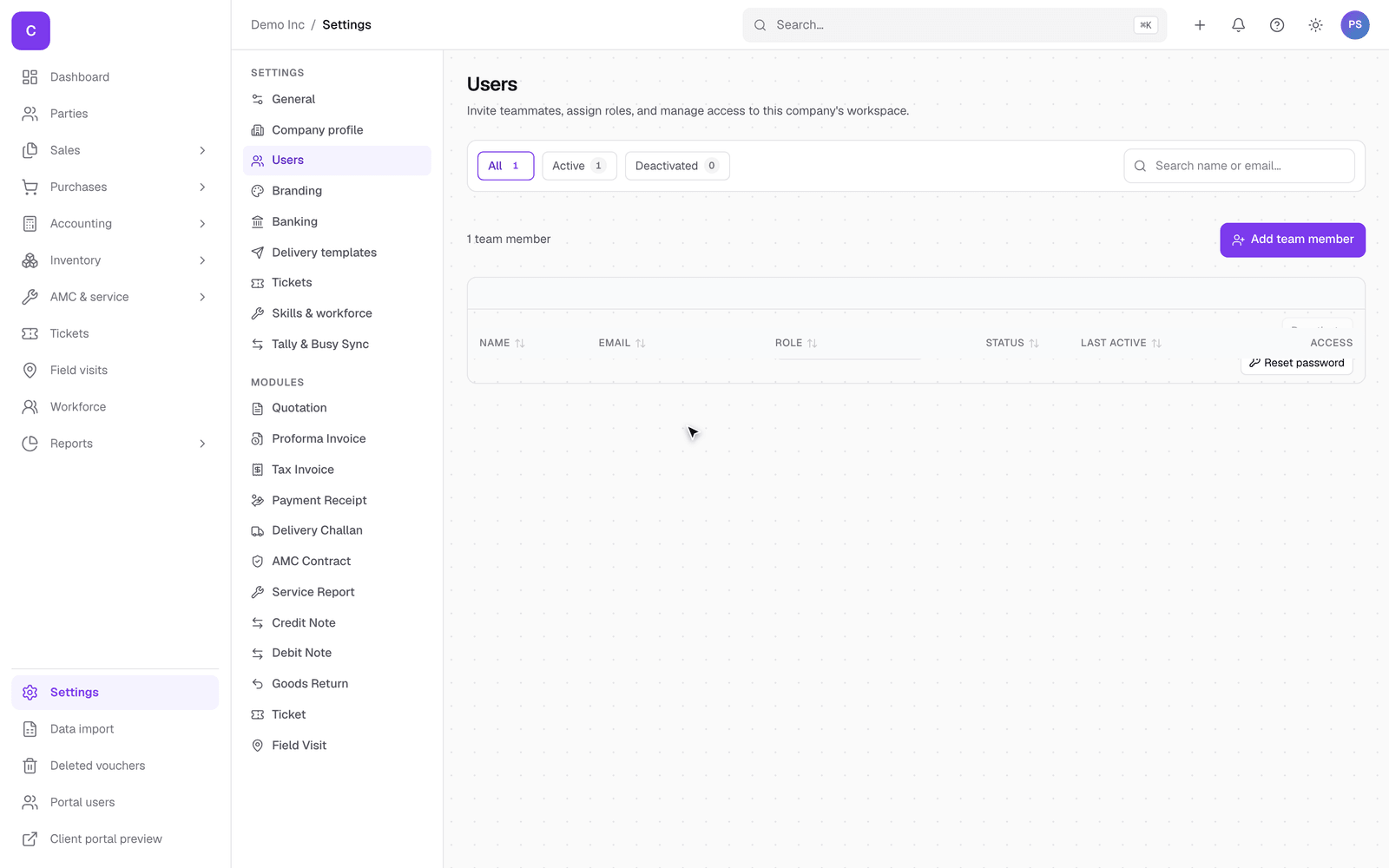
Team management is under Settings, then Users.
Adding a team member
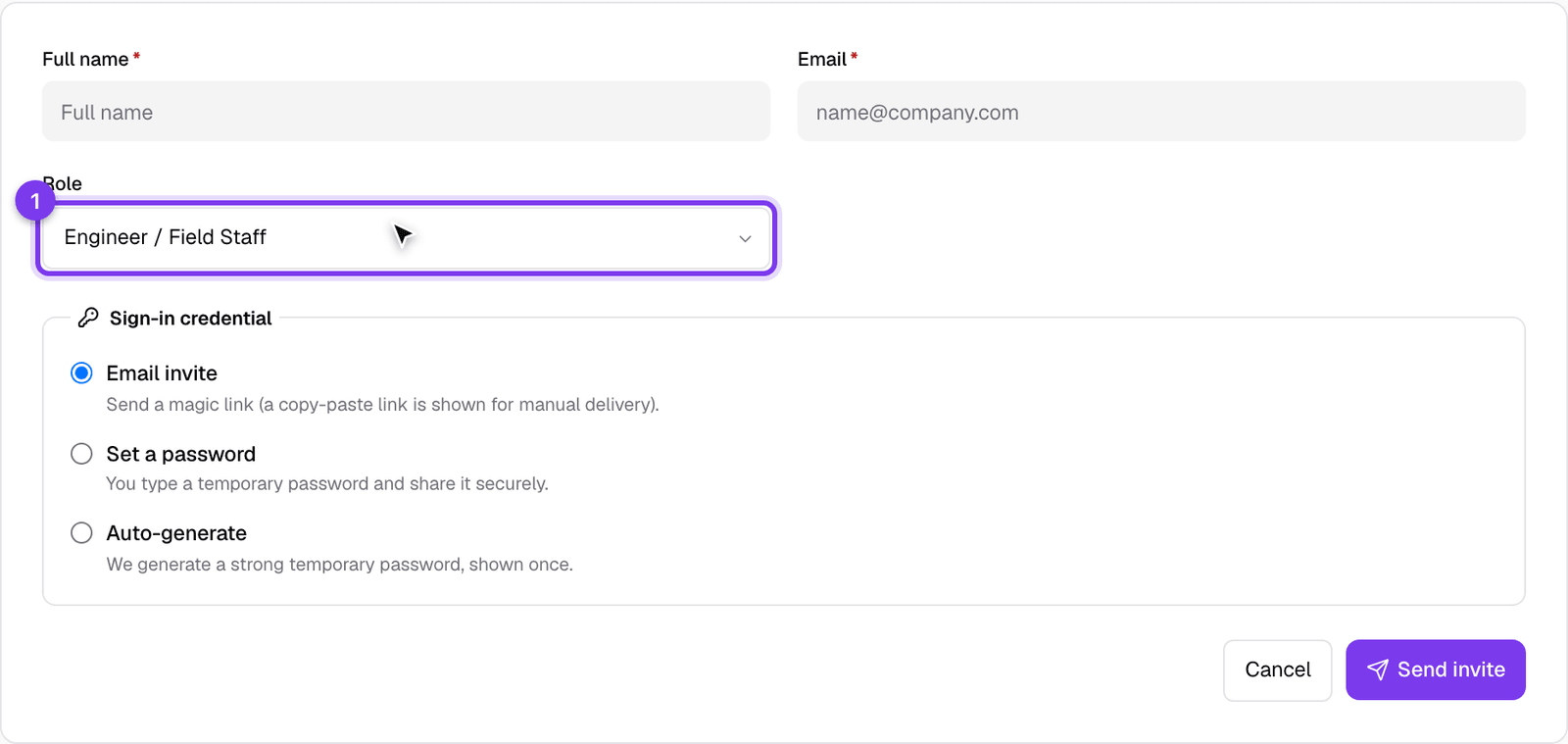
The page lists everyone on your team with their role and status. To add someone, open the invite panel and enter their name, email, and role. You choose how they get their login:
- Send them an email link to set their own password.
- Set a password for them yourself.
- Auto-generate one to share.
You can also require them to change the password on first sign-in. Once created, they appear in the team list, and you can open anyone to change their role later.
The roles
There are five roles, from most to least access:
- Owner: full access to everything, including settings and billing. This is you.
- Admin: nearly everything an owner can do, for a trusted second-in-command.
- Manager: runs the day to day, sales, purchases, service, without the deepest settings.
- Engineer / Field Staff: their visits and service work, on the mobile app and here.
- Accounts: the money side, invoices, payments, GST, without the operational areas they do not need.
Pick the role that matches what a person actually does. You can change it any time as their responsibilities change.
Good to know
- A person only ever sees the parts of ClientOS their role allows, so the menu itself is shorter for a field engineer than for an owner.
- Roles here are for your STAFF. Giving a client access to their own portal is separate, and covered in the client portal guide.
- Because every action is tied to the person who did it, the activity trail always shows who created, changed or sent something.