Data import and AI capture
There are two ways to get information into ClientOS without typing it in one record at a time: a spreadsheet import for your existing master data, and AI capture for reading a vendor's bill from a photo or PDF.
Importing from a spreadsheet
Data import is under Data import in the left menu. It brings in master data only: your clients, vendors, products, services, and opening stock. Statutory documents like invoices are never bulk imported, because they mint official numbers and move stock; those are always made on their own screens.
There are two modes:
- One type at a time: pick a record type (say products), download the sample, fill it, and upload.
- Everything (master file): download the master template, one workbook with a tab per type, fill the tabs, and upload the lot. ClientOS imports them in the right order (clients and vendors and products first, opening stock last, because stock needs the products to exist).
The steps are the same either way:
- Download the template or sample so your columns match.
- Fill it in your spreadsheet program.
- Upload the file. ClientOS shows how many rows it read.
- Import. Each row goes through the same checks as if you had typed it, so a bad GSTIN or a duplicate is caught.
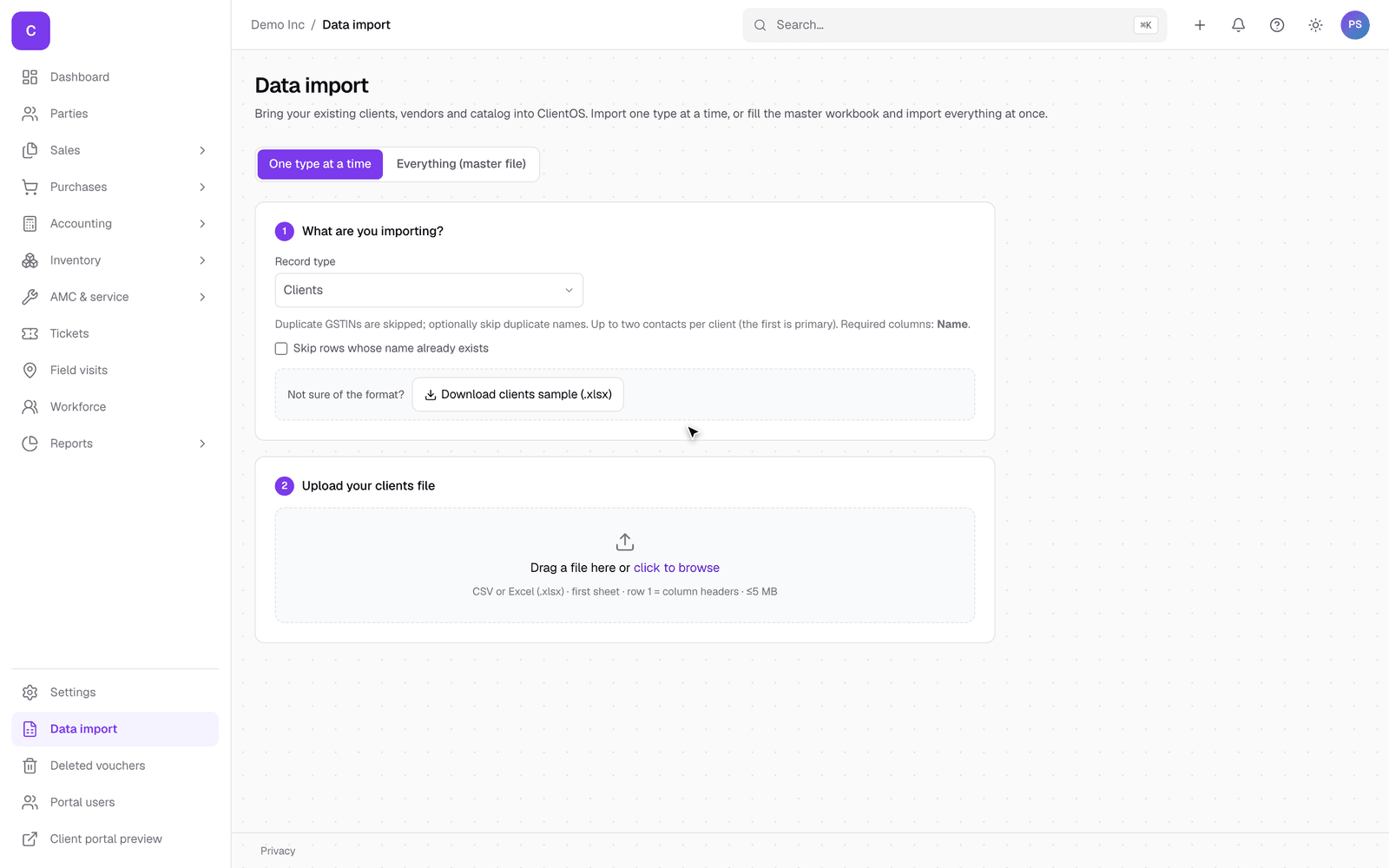
Nothing is lost or duplicated: a row that already exists is skipped, and if a row cannot be imported you get a clear reason for that specific row so you can fix it and re-upload. Re-running the same file is safe.
AI capture: reading a vendor's bill
Instead of typing a purchase bill, you can photograph it or upload the PDF and let ClientOS read it. Open Purchases, then Vendor invoices, and use the capture option, or go straight to the capture screen.
- Upload a photo or PDF of the vendor's bill.
- ClientOS reads it and opens a review screen with the vendor, the line items, and the tax already filled in from the bill.
- Review and correct: this is the important step. Each line is matched to a catalog item; where the reader is unsure of something, it flags it so you can confirm or fix it before saving. A common example is the GST rate: if the bill shows a discount percentage where the tax rate usually sits, ClientOS works the real rate out from the bill's totals and marks the line for you to confirm, rather than guessing. You link each line to the right product (or quick-add it), set anything flagged, and the totals update as you go.
- Commit: once every line is resolved, saving turns the capture into a proper vendor invoice, with the bill kept as the attachment.
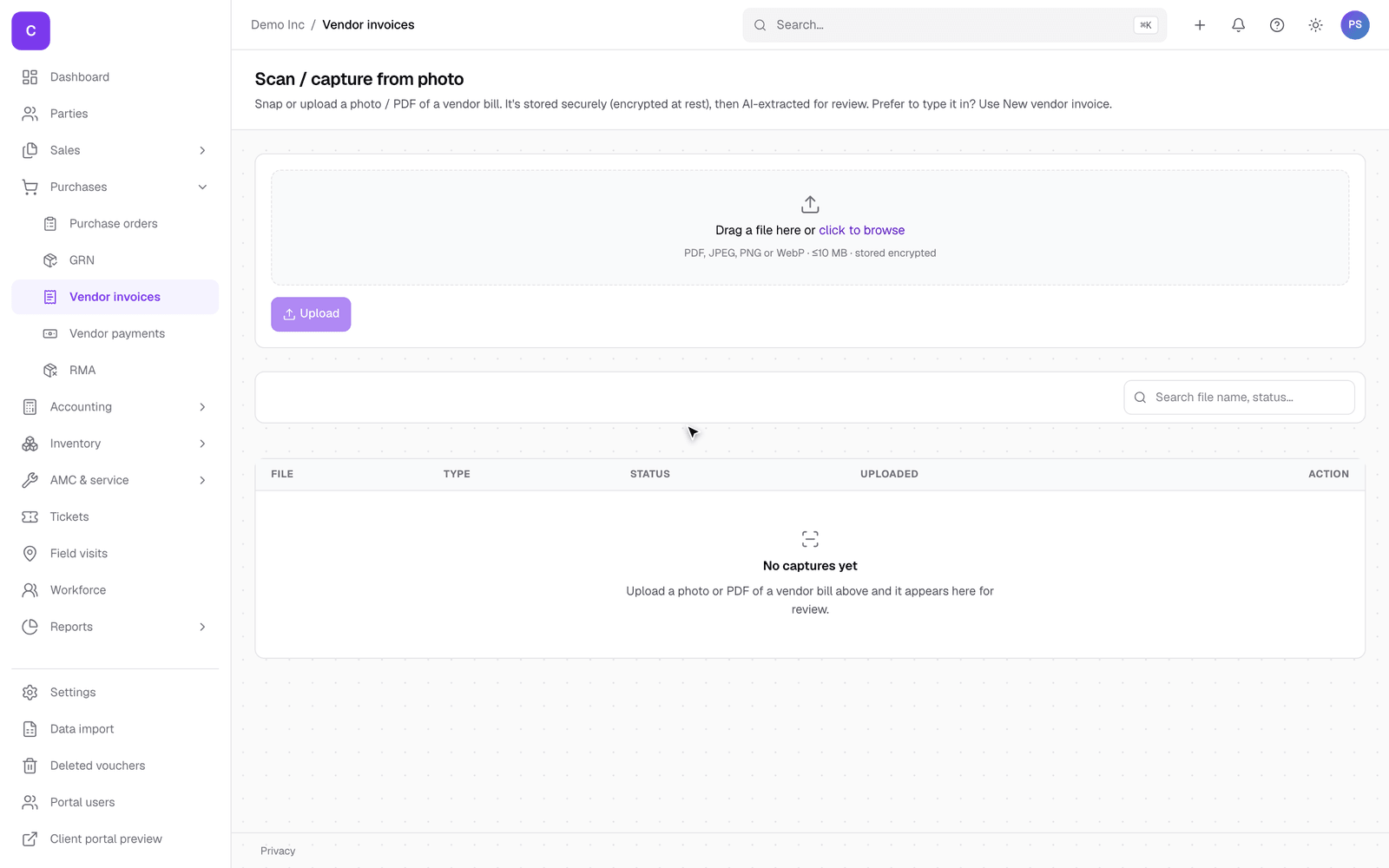
The review-and-correct screen only appears after a real bill has been read, so it is not shown here: the demo company deliberately holds no scanned bills, and putting invented numbers on a screenshot would misrepresent what the reader actually returns. On your own account, upload any vendor bill to see the review screen with your real figures.
Good to know
- Everything the reader captures stays private: the bill and its extracted figures are encrypted and never written to logs.
- A captured bill becomes an ordinary vendor invoice, so it verifies, moves stock, and pays exactly like one you typed by hand (see the purchases guide).
- Import is for setting up and for occasional bulk changes; day to day, you will mostly create records on their own screens.