Payments and advances
When a customer pays you, record a receipt under Sales, then Payments received. A receipt can settle one invoice, settle several at once, or sit as an advance until you decide which invoice it belongs to. The same ideas apply on the purchase side under vendor payments.
Recording a receipt
The quickest path is straight from an invoice: open it and click Receive Payment, and the receipt opens with the customer and the balance already filled in (this is the flow in the getting started tutorial).
To record a payment without starting from one invoice, open Payments received and start a new receipt:
- Pick the Client. Their open invoices load underneath.
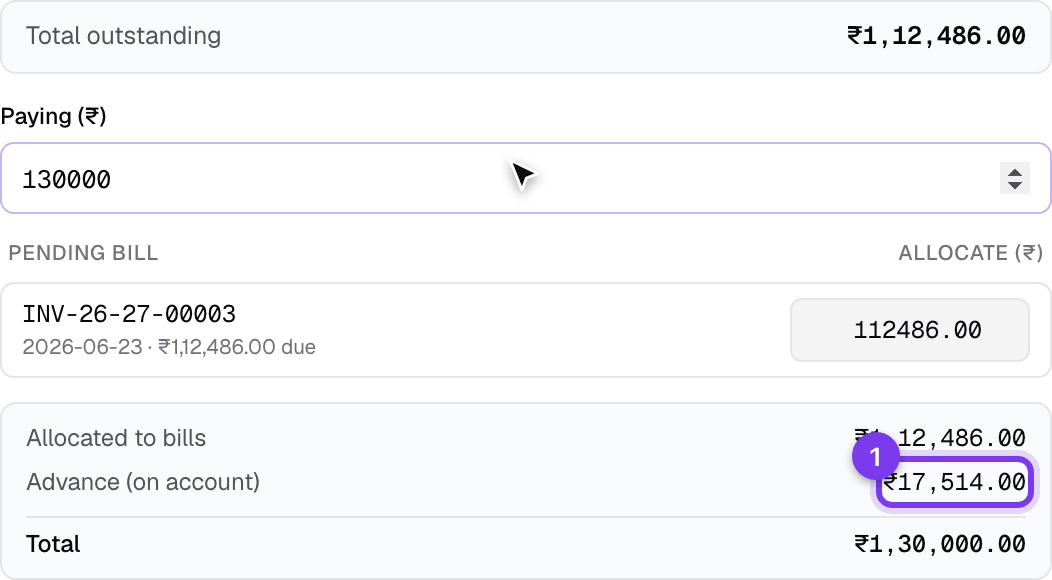
- Enter what you are paying in the box at the top. ClientOS settles the oldest bill first and moves down the list, and you can adjust any line by hand.
- If the amount is more than the total due, the leftover is shown as an advance, held on the client's account for later.
- Choose the Payment method and, for anything other than cash, the bank or cash account that received the money.
- Click Record receipt.
Advances
An advance is money received before there is an invoice to apply it to, for example a booking deposit. You can record a pure advance the same way (pick the client, and with no bill to settle the whole amount is held as an advance), and it waits on the client's account.
When the invoice finally exists, open the advance receipt and apply it:
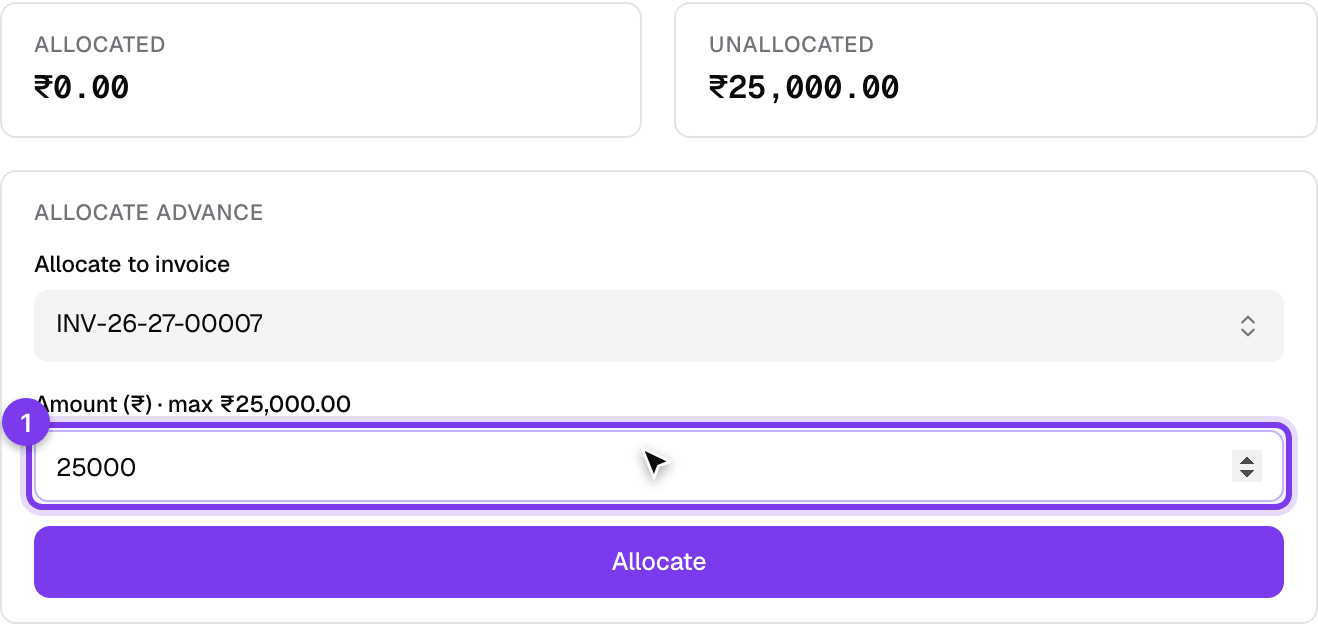
- The receipt page shows Allocated and Unallocated amounts.
- Under Allocate advance, pick the invoice and the amount to apply (never more than the unallocated balance or the invoice's due amount).
- Click Allocate. The invoice's balance drops straight away, and the advance's unallocated amount reduces by what you applied.
You can apply one advance across several invoices over time, a bit each. An advance that still has allocations cannot be cancelled; remove the allocations first.
A note on totals
An advance is money in the bank, but it is not yet income against any invoice. ClientOS keeps this straight for you: applying an advance to an invoice never counts the same rupees twice in your reports, and a pure advance shows as an advance on its PDF rather than claiming to be against an invoice it has not been matched to yet.
Paying vendors
Vendor payments work the same in reverse, under Purchases, then Vendor payments, or straight from a vendor bill. Pick the method and the account the money left, add the reference, and record it. TDS, if you deduct it, is handled on the same form. See the purchases guide for the full bill-to-payment flow.