Clients and vendors (parties)
Everyone you deal with, whether you sell to them, buy from them, or both, is a party. Open Parties in the left menu to see them all. A party can be a customer, a supplier, or both at once; the same page adapts to show what is relevant.
Adding a party
Click New party, tick whether they are a customer, a supplier, or both, and fill in the name. GSTIN, PAN, address, phone and email are optional but worth adding, because they flow onto documents and let you send reminders. If you enter a GSTIN, the state is read from it automatically.
The 360 view
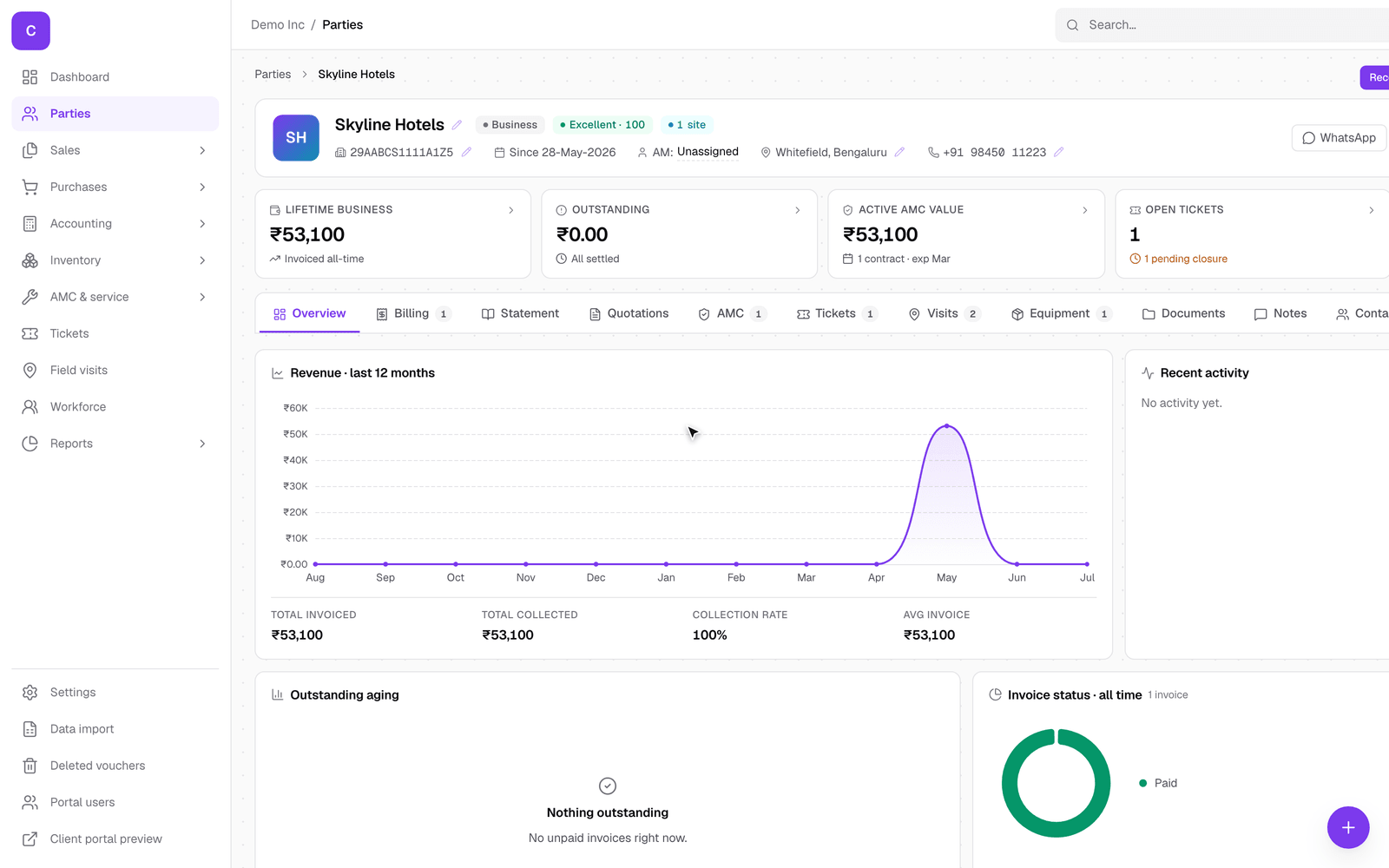
Click any party to open their page. The tabs across the top gather everything about them in one place:
- Overview: contact details, outstanding balance, and quick stats.
- Billing and Purchases: their invoices and, for suppliers, their bills.
- Statement: a running statement of account you can download.
- Quotations, AMC, Tickets, Visits, Equipment: their history in each area.
- Documents, Notes, Contacts, Locations, Portal: files, internal notes, the people you deal with there, their sites, and their portal access.
You never have to hunt across the app for a client's history; it is all on this one page.
Privacy: consent, erase, and export
India's data protection law (the DPDP Act) gives people rights over their personal data. ClientOS puts the controls for this right on the party's overview, in plain reach, so you can honour a request without calling anyone.
Recording consent
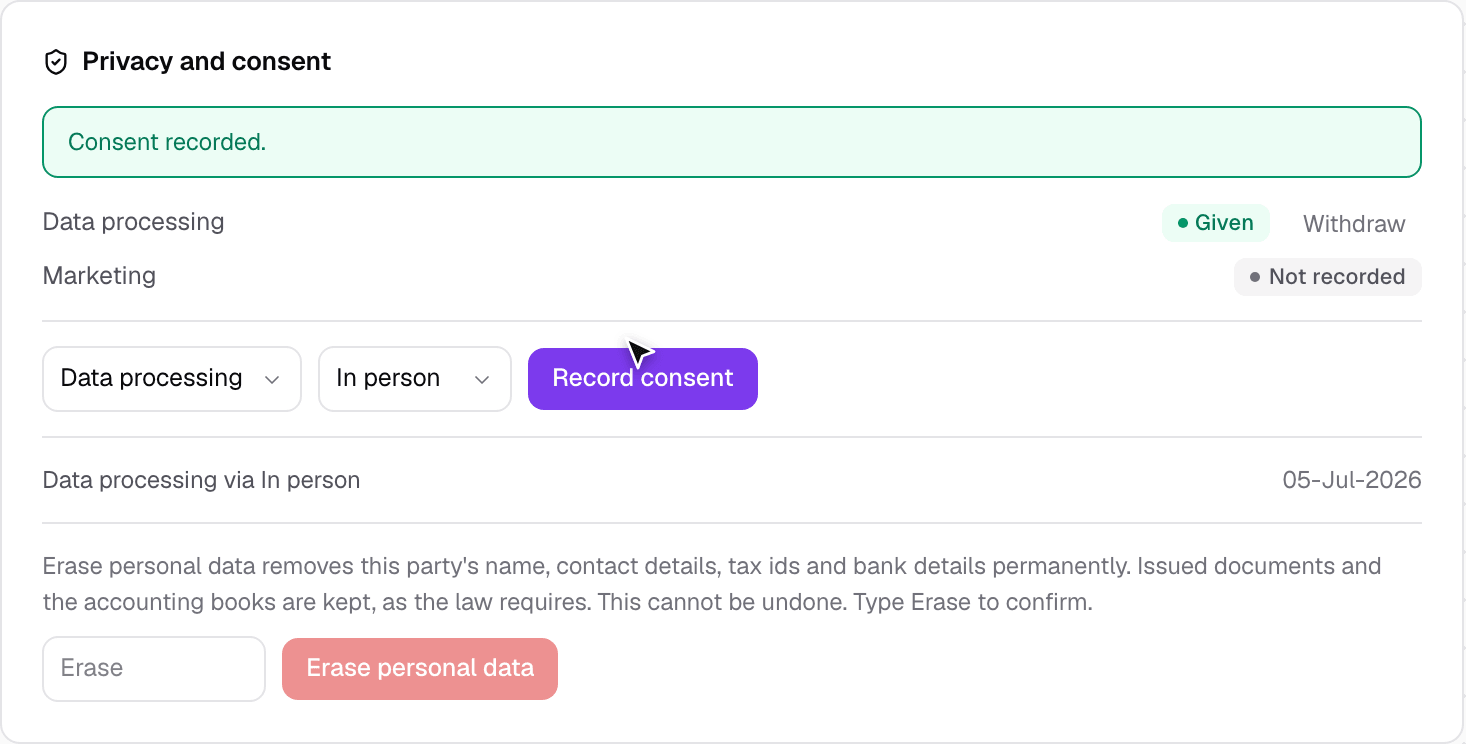
The privacy panel shows whether you have the person's consent for data processing and for marketing, and lets you record it.
- Pick the purpose (data processing or marketing) and how you got the consent (in person, phone, email, WhatsApp, written, or portal).
- Click Record consent. The panel then shows that consent is Given, with the date.
- If they later change their mind, click Withdraw next to that purpose. The history keeps both, so you always have a record of what was agreed and when.
Exporting a person's data
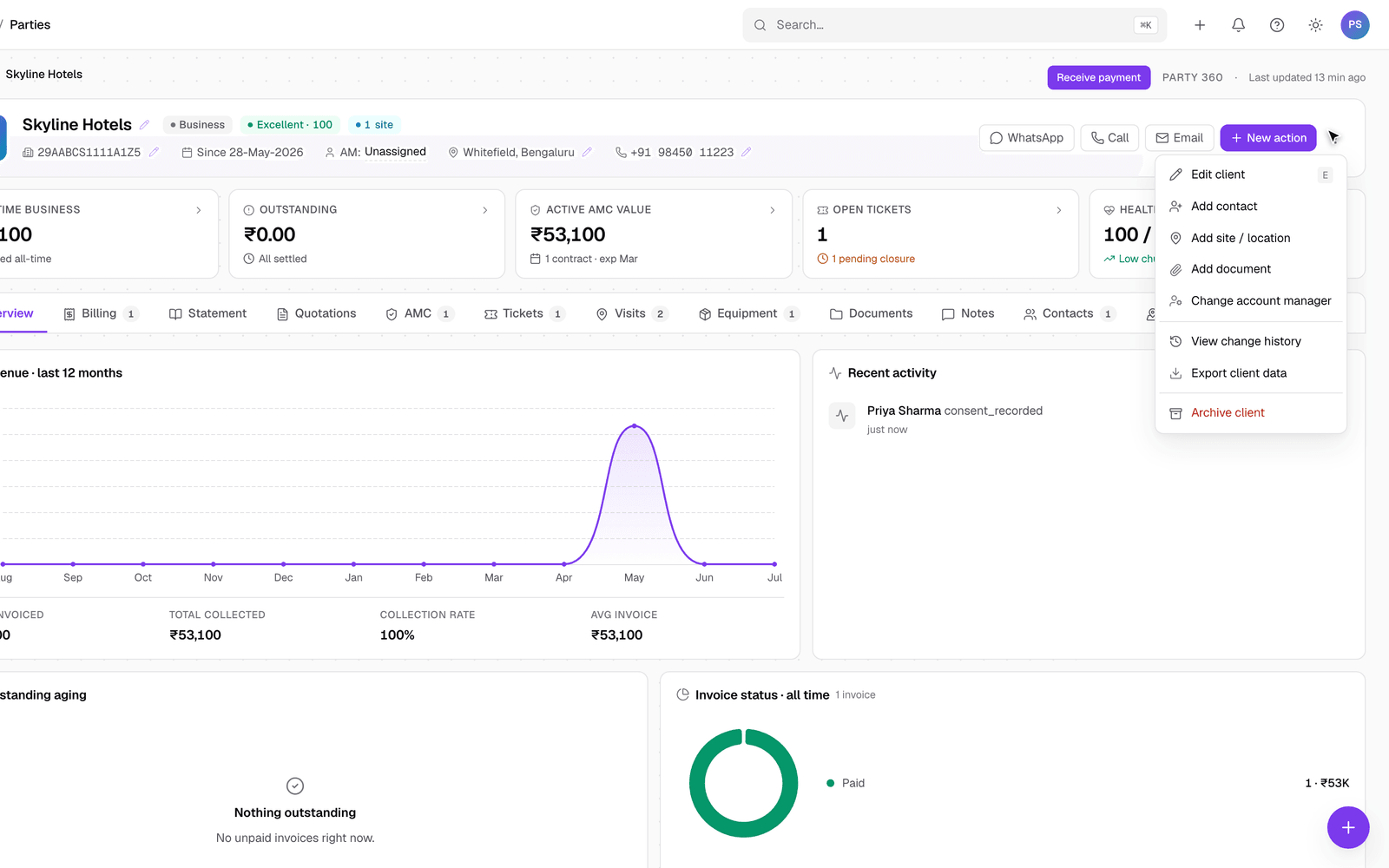
If someone asks for a copy of the data you hold on them, open the More actions menu on their page and choose Export client data. ClientOS downloads a file with their details that you can send them.
Erasing personal data
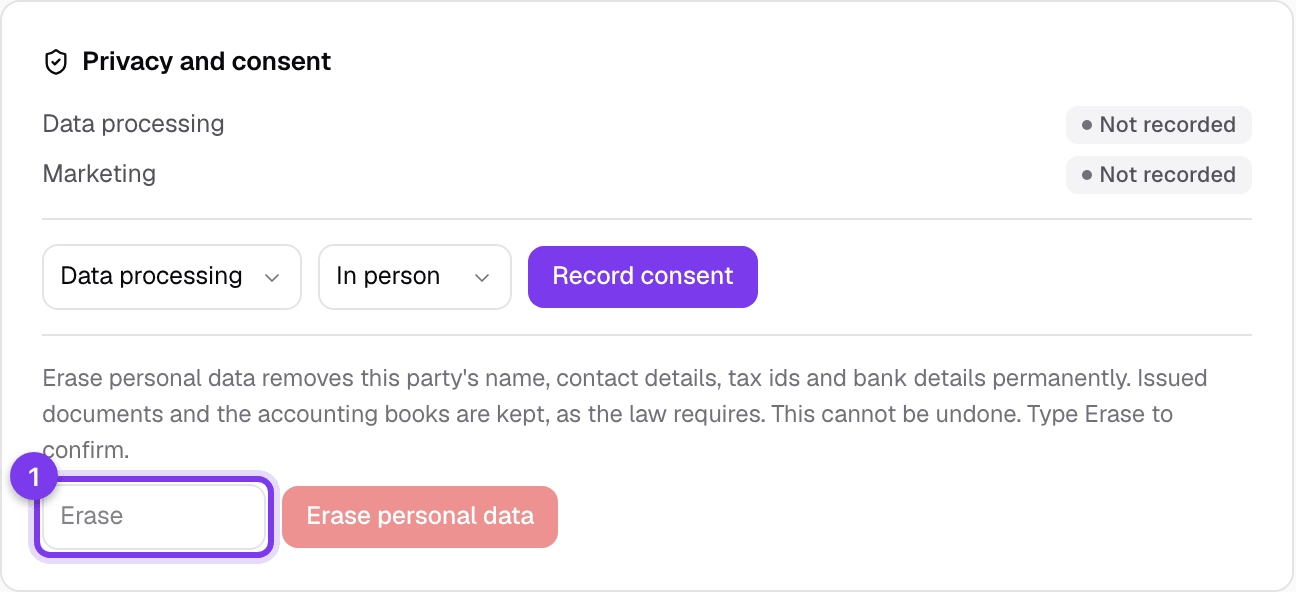
If someone asks you to delete their personal data, use Erase personal data in the privacy panel. Read the warning first, because this is deliberately hard to undo:
- It removes the person's name, contact details, tax IDs and bank details permanently.
- It keeps the issued documents and the accounting books, because the law requires you to hold those for years. Those records keep the name they were issued with; only the live party record is cleared.
- It cannot be undone. To prevent an accident, you must type the word Erase to confirm.
Once done, the party shows a Personal data erased marker.
Good to know
- A party can hold both roles: mark them customer and supplier, and both the sales and purchase tabs appear.
- Merging duplicates and archiving old parties are handled from the list; archived parties drop out of the pickers but stay on their old documents.
- The statement of account (under the Statement tab) is the quickest way to answer "what does this client owe me right now".