Tally and Busy sync
ClientOS connects to the Tally or Busy company you already run, so your receivables, payables, sales and stock show up in ClientOS without re-entering anything. This is the feature that lets you keep using Tally exactly as you do today and get a modern front end on top of it.
The most important promise first: nothing you do in ClientOS changes how you run Tally or Busy. Your voucher types, your numbering method, your ledgers, your settings all stay exactly as they are. There is no setup to change inside Tally, and you never have to approve or re-key anything there.
Sync is set up under Settings, then Tally & Busy Sync.
The two ways it can run
There are two modes, and it helps to know which one you are on:
- View only: ClientOS reads from Tally and shows it to you. Nothing flows back. This is the safe way to start, and for many businesses it is all they need.
- Two way: on top of reading, documents you issue in ClientOS are also written into Tally as normal, posted vouchers, so both sides stay in step. A voucher raised in ClientOS appears in Tally straight away; you do not approve it again there.
If you are not sure which mode you are on, ask whoever set up your account. Two way is turned on deliberately, once you are comfortable, and it never imposes any change on your Tally setup.
Connecting
Because Tally and Busy run on your own computer, a small helper program (the agent) runs on that same machine and talks to ClientOS for you. Connecting is three steps:
- Install the agent on the computer where Tally or Busy is running. It sits quietly in the system tray.
- On the Tally & Busy Sync page, give the machine a name and click Generate enrolment code.
- Paste that one-time code into the agent. That is the whole connection; the agent then keeps ClientOS and Tally in step on its own.
The page shows you the state at a glance: whether the agent is connected, when the last sync ran, whether the import is complete, and whether your figures match Tally. On the demo company there is no real Tally attached, so it sits at "Waiting for agent", which is exactly what you would see before you connect your own.
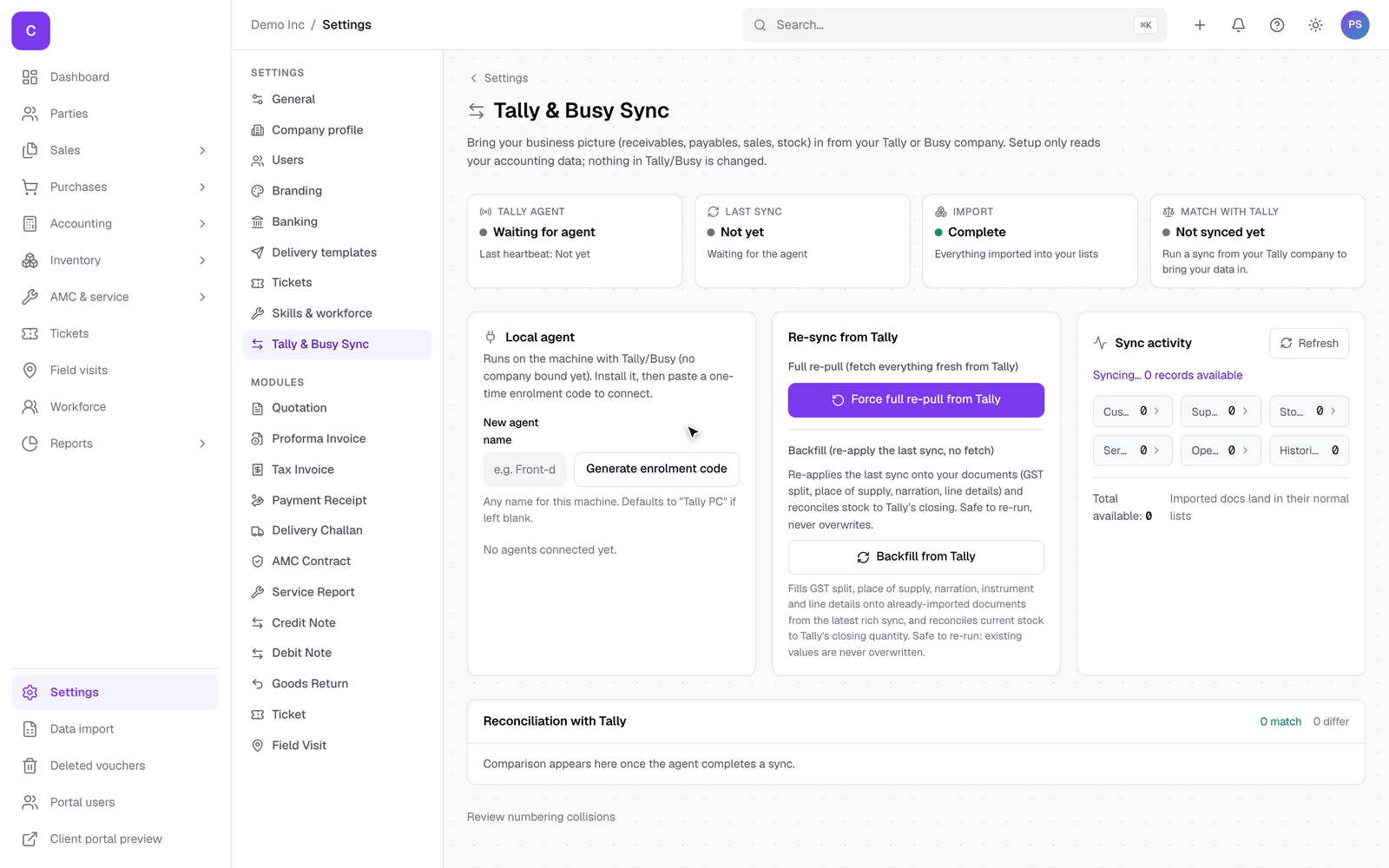
The agent itself is a small Windows program with its own tray window; it is not part of the web app, so it is not shown in these pictures. When you are given the agent to install, it comes with its own short setup steps. Everything on the ClientOS side is on the page above.
Keeping it in step
Once connected, the agent keeps things current on its own. Two buttons on the page are there for when you want to force it:
- Force full re-pull from Tally: fetches everything fresh from Tally. Use it if you think something was missed.
- Backfill from Tally: re-applies the last sync onto your documents (GST split, place of supply, narration, line details) and lines your stock up to Tally's closing figure, without overwriting anything. Safe to re-run.
The Match with Tally check keeps a running verdict on whether your ClientOS figures agree with Tally, so you can trust the numbers rather than reconcile them by hand.
Numbering
Your voucher numbers are yours: ClientOS never changes how Tally numbers vouchers. If Tally numbers a voucher type manually, the number you gave it is kept; if Tally numbers it automatically, Tally assigns its own. Either way the two sides line up on the same voucher, so you are never chasing a mismatch. When a genuine numbering clash needs your eye, ClientOS surfaces it for review rather than guessing.
Deleting and restoring, on both sides
Deleting a voucher works the way it does in Tally, and it stays in step across both:
- Cancelling a voucher keeps its number and its record; the voucher stays, marked cancelled. This is what GST expects for a numbered document.
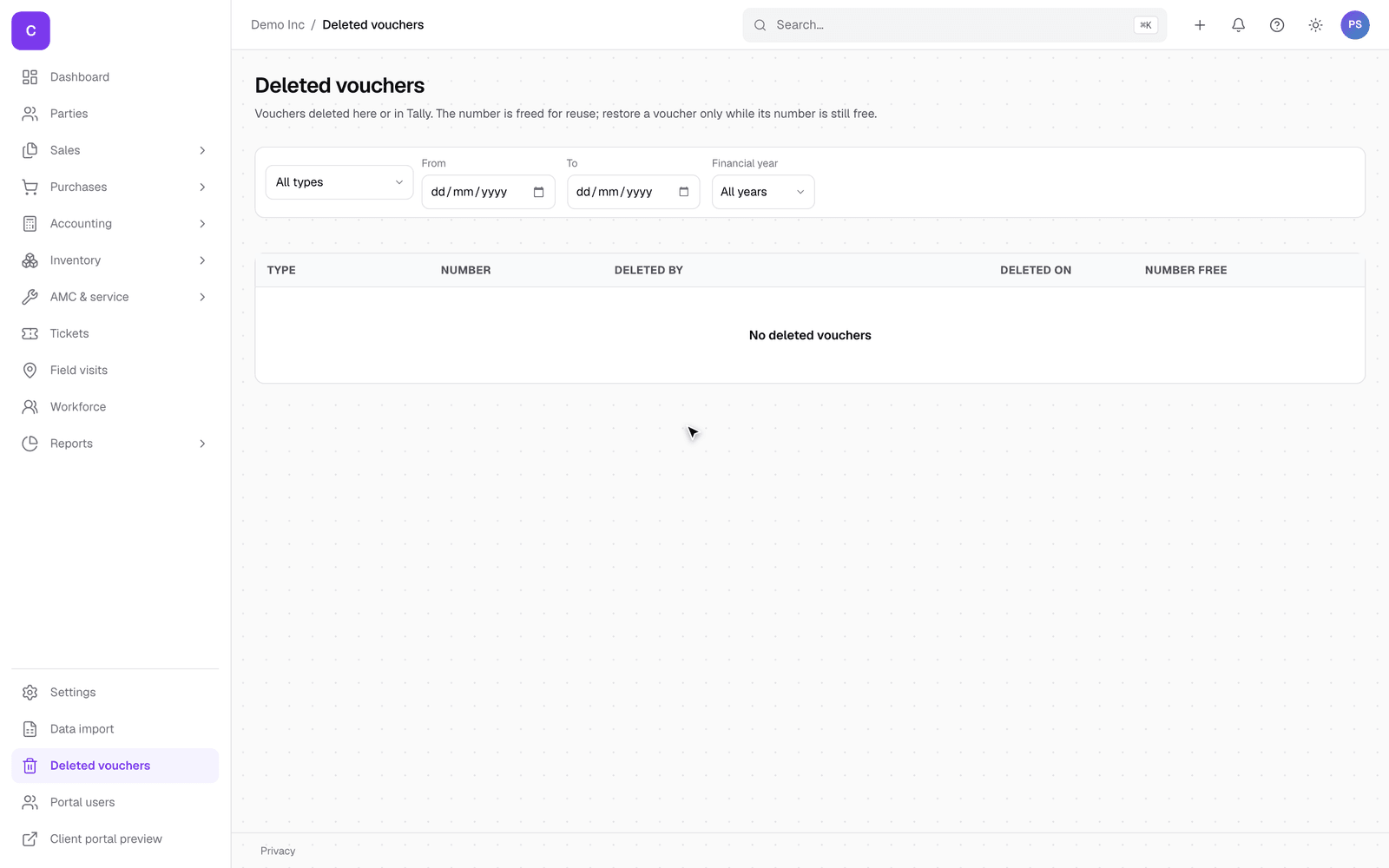
- Deleting a voucher is a soft delete: the voucher is never truly thrown away (it moves to the Deleted vouchers list and can be restored), but its number is freed so the next voucher can reuse it and your series stays gap free. This mirrors Tally, where deleting a voucher frees its number too. Delete on either side reflects on the other.
To bring one back, open Deleted vouchers, find it, and click Restore, as long as its number is still free (the list tells you). If another voucher has since taken the number, ClientOS says so rather than creating a clash.
Good to know
- Setup only reads your accounting data; the connector never changes anything inside Tally or Busy.
- Both Tally and Busy work the same way here; the model is the standard double-entry and voucher behaviour they share, not anything specific to one company's file.
A live reconciliation, with your real figures matching Tally line by line, appears once your own agent is connected. The demo cannot show it because it has no Tally attached, and inventing figures would misrepresent what the check actually returns.