Sales
The sales documents live under Sales in the left menu, and they are designed as one chain: a quotation can become an invoice, an invoice can produce a delivery challan, a credit note, a debit note or a goods return, and every linked document is created pre-filled from its source so nothing is typed twice.
If you have not made your first invoice yet, start with the getting started tutorial; this page builds on it.
Quotations

Creating a quotation starts exactly like an invoice: open Sales, then Quotations, click the new button, pick the customer and add catalog lines. Quotations then follow a short approval workflow before they reach the client:
- Save draft saves it without a number; you can keep editing or discard it.
- Submit for approval hands it to whoever approves quotes. In a small team the same person can do every step.
- Start review, then Decide to approve or reject it.
- Send to client is the moment the quotation gets its number and its validity date.
- When the client says yes, Mark accepted.
The current status is always shown next to the title, and the buttons on the quotation page only ever offer the steps that make sense from where it stands.
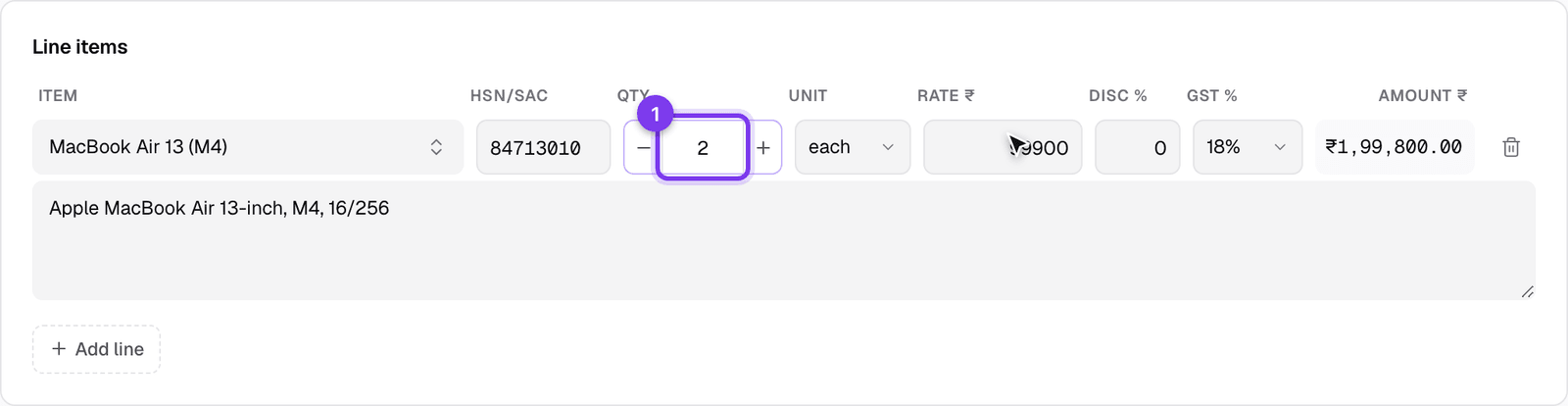
Turning a quotation into an invoice
Once a quotation is sent, approved or accepted, convert buttons appear on its page:
- Convert to Tax Invoice copies the customer and every line into a new draft invoice.
- Convert to Proforma does the same into a proforma invoice.
- Generate Delivery Challan creates a delivery challan from the quotation.
- Quotations with a service line also offer Convert to AMC, which starts an annual maintenance contract from the quoted service.
The converted invoice arrives as a draft: check the dates and lines, then click Issue invoice on its page when you are ready. The quotation and the invoice stay linked, so you can always trace one from the other.

Delivery challans
On an issued invoice, pick the challan's purpose in the Delivery challan for box (Stock Transfer is the default) and click Generate Delivery Challan. The challan is created with the invoice's line items and addresses already copied in.
Stock is handled for you: product lines reduce stock once, at the document that actually ships the goods. An invoice and a challan that are linked to each other never deduct the same stock twice, and service lines never touch stock at all.
Credit notes and debit notes
Use a credit note when you owe the client money against an invoice (a price adjustment, damaged goods, a cancelled portion). Use a debit note for the opposite, when the invoice under-billed.
- Open the invoice and click Issue Credit Note (or Issue Debit Note).
- The form opens with the original invoice already selected. Pick the same customer, choose a reason, then enter the lines being adjusted and issue it like any other document.
- The invoice's payment panel then shows the adjustment: credit notes reduce the net invoice value, debit notes increase it, and the balance due updates accordingly.
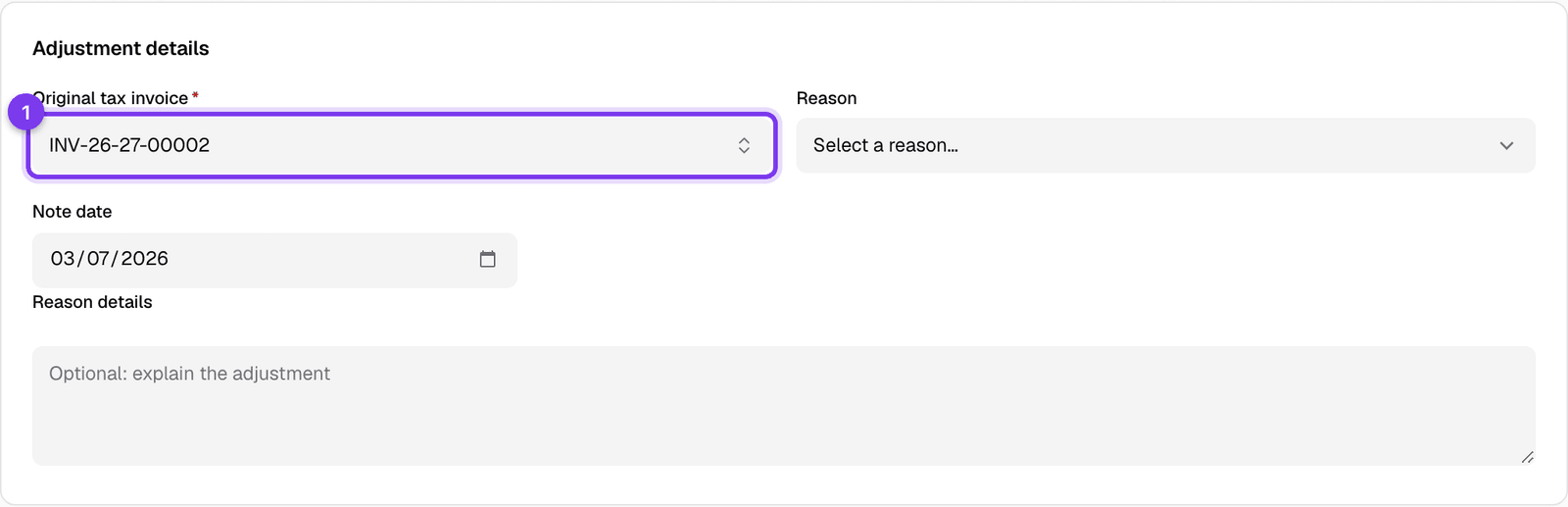
Goods returns
When a client sends goods back, open the invoice and click Initiate return. The return form opens against that invoice; record the items coming back. Pair it with a credit note if money is owed back as well.
Once the goods are dealt with, the return moves through its stages: received, inspected, then restocked or written off. When it is fully resolved, use Close return from the return's row menu to mark it complete. Closing keeps the return number for your records; it is only offered once a return is restocked or written off, so a return still being processed cannot be closed by mistake.
Good to know
- Issued documents are never deleted. Cancelling keeps the number and the record, which is what GST expects. Drafts, having no number, can be discarded freely.
- Every document page has a Duplicate option to start a fresh copy, including duplicating into a different document type.
- Sending documents to the client by email or WhatsApp works the same on every sales document; see the communications guide once it is published.